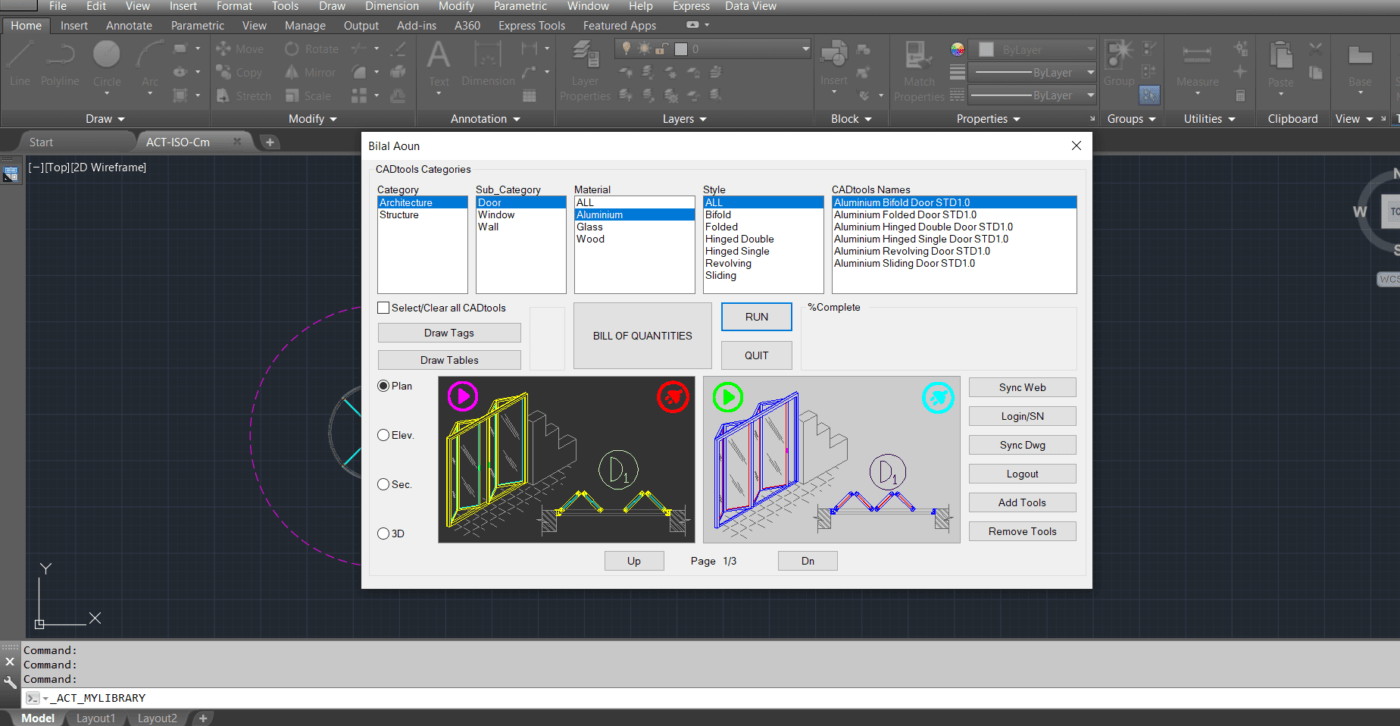
Get Started
- Download AppisCAD software AppisCAD.msi file
- Double click the .msi file to start installing the software into your PC
- Open AutoCAD and type MYLIBRARY in the command line
Install AppisCAD Software
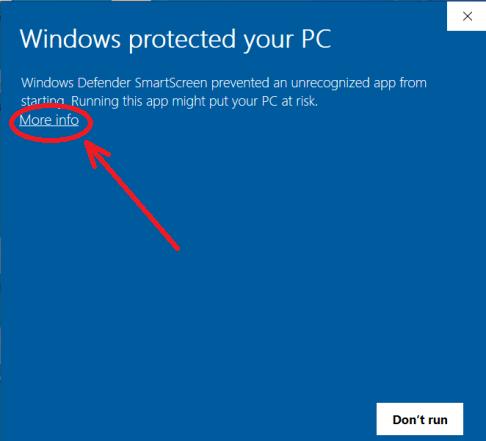
Double-click the .msi file to start the installation. If you see a “Windows protected your PC” warning (like the image below), don’t worry — this happens because the software is not yet recognized by Windows SmartScreen. To continue the installation safely: Click “More info”, then click “Run anyway”. This is a normal step for newly released software.

The download wizard starts, as shown in the below figure.

Click Next, then follow the setup wizard instructions until the software is successfully installed.
Open an AutoCAD session to start with AppisCAD
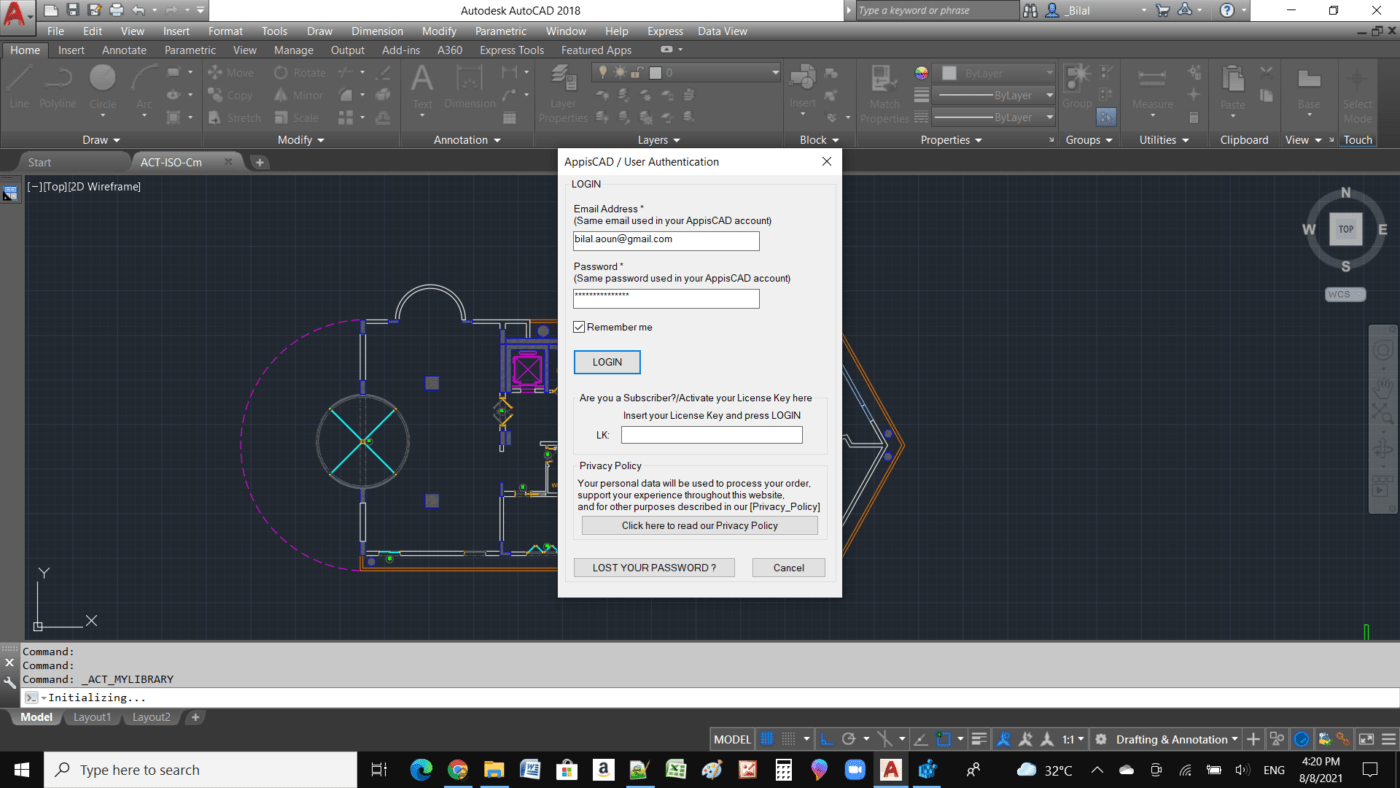
Open AutoCAD, and in the command line type mylibrary then press enter to open the library dialog (or simply press on the My Library icon). As shown in the below figure, the Login dialog appears, type your email, then press LOGIN button to start. (Internet connection is required)
For more details watch this Video Tutorial.